Operating an analytical balance involves a series of detailed steps, from setup and calibration to weighing and maintenance. This guide provides comprehensive instructions to help you achieve accurate and consistent measurements.
Setting Up the Analytical Balance
Unpacking and Inspection
Upon receiving your analytical balance, carefully unpack it and inspect all components for damage. Ensure that you have received all parts, including the balance, power adapter, calibration weights, and any accessories.
Placement and Installation
Place the Laboratory balance on a stable, vibration-free surface away from drafts, direct sunlight, and temperature fluctuations. Ideally, use a dedicated weighing table. Install any windshields provided to protect the weighing pan from air currents.
Powering On and Calibration
Connect the power adapter to the balance and plug it into a suitable electrical outlet. Turn on the balance and allow it to warm up according to the manufacturer’s instructions, typically for at least 30 minutes. Perform an initial calibration using certified calibration weights to ensure accuracy.
Basic Operating Procedures
Understanding the Control Panel
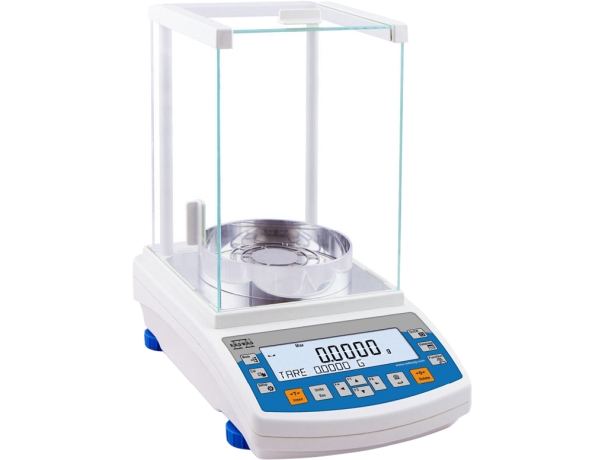
Familiarize yourself with the control panel, which usually includes a display screen, function keys, and a tare button. Refer to the user manual to understand each button's function and navigate through different settings.
Weighing Procedures
Taring the Balance
Before weighing a sample, ensure the balance reads zero. Place an empty container or weighing paper on the pan and press the tare button to subtract the container's weight, setting the display to zero.
Placing the Sample
Carefully place the sample in the tared container. Avoid touching the container with your hands to prevent transferring moisture or oils that could affect the weight. Use tweezers or gloves if necessary.
Recording the Weight
Wait for the balance to stabilize and display a constant reading. Record the weight accurately, noting the units used (e.g., grams, milligrams).
Advanced Features and Functions
Using Built-In Programs
Many have built-in programs for specific tasks such as density determination, percentage weighing, and formulation. Consult the user manual to activate and use these programs effectively.
Statistical Functions
Some offer statistical functions to calculate mean, standard deviation, and other statistical parameters directly. These functions are valuable for quality control and process validation.
Connectivity and Data Transfer
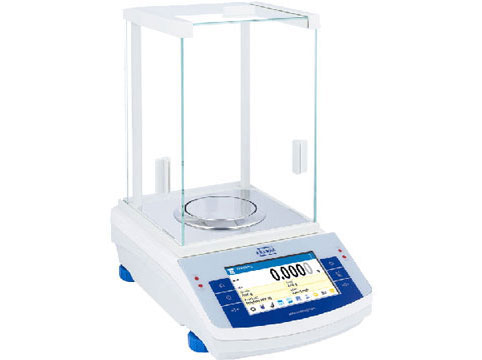
Modern balances often feature connectivity options like USB, RS232, or Bluetooth. Use these connections to transfer data to a computer or printer for documentation and analysis.
* These are general instructions only and you must work according to the manufacturer's instructions